

Share
Fr. 54.50
T Carpenter, Tom Carpenter
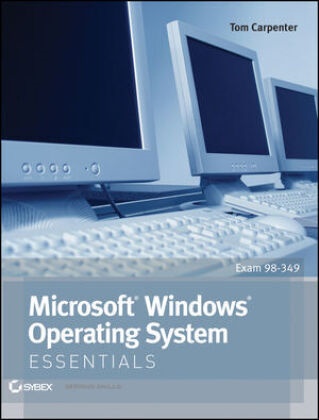
Microsoft Windows Operating System Essentials
English · Paperback / Softback
Shipping usually within 1 to 3 weeks (not available at short notice)
Description
Informationen zum Autor Tom Carpenter is the author of several books for the IT industry, including Sybex's Microsoft Windows Server Administration Essentials. He is the founder and Senior Consultant for The Systems Education Company (SysEdCo), a training and consulting company specializing in Microsoft and network infrastructure technologies. Tom has trained the U.S. Department of Defense, the FBI, Procter & Gamble, Wells Fargo, and several other companiesand organizations on topics ranging from Windows Server administration to wireless LAN penetration testing. Klappentext Learn Windows Quickly and EasilyThis full-color guide covers the basics of the Microsoft Windows 7 operating system and prepares you to take the Microsoft Technology Associate Exam 98-349, Windows Operating System Fundamentals. The book starts with a practical overview, before walking you through such essentials as clean installs versus upgrades, configuration, security, file and device management, Group Policy, and more. Whether you're preparing for the exam or just brushing up, this is the solid grounding you need to be successful managing Windows Desktop environments.Learn these Windows networking essentials--and more:* Windows OS basics--history, architecture, installation* Using the desktop, gadgets, shortcuts, and the Aero interface* Viewing configuration settings and managing the Control Panel* Working with PowerShell navigation and cmdlets* Using Group Policy and understanding virtualization* Setting up devices, file sharing, security, and storage* Handling troubleshooting, backup and recovery, and updates* Preparing for MTA Exam 98-349, Windows Operating System FundamentalsView full-color images of key Windows 7 featuresPractical illustrations help reinforce learning objectivesThis striking Essentials book features:* Chapter-opening learning objectives* Full coverage of all exam topics* Four-color screenshots and illustrations* Essentials and Beyond--summaries and additional suggested exercises* Chapter review questions Zusammenfassung A full-color guide to key Windows 7 administration concepts and topicsWindows 7 is the leading desktop software, yet it can be a difficult concept to grasp, especially for those new to the field of IT. Microsoft Windows Operating System Essentials is an ideal resource for anyone new to computer administration and looking for a career in computers. Delving into areas such as fundamental Windows 7 administration concepts and various desktop OS topics, this full-color book addresses the skills necessary for individuals looking to break into a career in IT.Each chapter begins with a list of topic areas to be discussed, followed by a clear and concise discussion of the core Windows 7 administration concepts and skills necessary so you can gain a strong understanding of the chapter topic areas. The chapters conclude with review questions and suggested labs, so you can gauge your understanding of the chapter's contents.* Offers in-depth coverage of operating system configurations* Explains how to install and upgrade client systems* Addresses managing applications and devices* Helps you understand operating system maintenance* Covers the topics you need to know for the MTA 98-349 examThe full-color Microsoft Windows 7 Essentials proves itself to be an invaluable resource on Windows 7 and features additional learning tutorials and tools. Inhaltsverzeichnis Introduction xixChapter 1 Windows Operating Systems Overview 1Discovering the History of Windows 1DOS--The Precursor 2Windows 3.1--The GUI 4Windows Evolution 7Understanding the OS Architecture 8The Layers in Windows 8Windows Compared to Other Systems 13Identifying Windows Interfaces 14Using the GUI Interface 14Using the Command Prompt Interface 17Using Windows PowerShell 18The Essentials and Beyond 19Chapter 2 Installing Windows 23Exploring OS Editions 23Comparing Windo...
List of contents
Introduction xixChapter 1 Windows Operating Systems Overview 1Discovering the History of Windows 1DOS--The Precursor 2Windows 3.1--The GUI 4Windows Evolution 7Understanding the OS Architecture 8The Layers in Windows 8Windows Compared to Other Systems 13Identifying Windows Interfaces 14Using the GUI Interface 14Using the Command Prompt Interface 17Using Windows PowerShell 18The Essentials and Beyond 19Chapter 2 Installing Windows 23Exploring OS Editions 23Comparing Windows Editions 23Defining System Requirements 26Using the PC Upgrade Advisor 27Planning Clean Installs vs. Upgrades 28Understanding Upgrade Paths 29Considering Application Compatibility 30Planning for Upgrades 32Planning for Clean Installs 32Understanding Installation Types 33Installing from Removable Media 33Performing Network-Based Installations 37Managing Product Identification Keys 37Using Virtualized Installations 38Introducing Virtualization 38Application Virtualization 40Using Windows Virtual PC 40Using Third-Party Virtualization Software 42Understanding Windows XP Mode 43The Essentials and Beyond 43Chapter 3 Managing the Desktop 45Understanding Desktop Features 45Exploring the Desktop 45Using the Desktop Configuration Interfaces 48Start Menu Settings 48Taskbar Settings 50Notification Area Settings 53Understanding User Profiles and Desktop Relationships 55Working with Gadgets 56Adding Gadgets to the Desktop 56Configuring Gadgets 57Installing and Removing Gadgets 58Changing Display Settings 59Configuring the Screen Resolution 59Configuring Screen Magnification 60Using Multiple Display Devices 61Creating Shortcuts 61Creating a New Desktop Shortcut 61Modifying a Shortcut 63Adding System Icons to the Desktop 64Configuring the Aero Interface 65Understanding the Aero Features 65Using Aero Themes 66Configuring Aero Settings 67The Essentials and Beyond 68Chapter 4 Using Native Applications 71Using the Traditional Tools 71Editing Text 71Working with Images 78Performing Calculations 79Working with Internet Explorer 80Exploring the Browser Interface 80Using the Tools Menu 82Creating Screenshots 83Using the Print Screen Button 84Working with the Snipping Tool 84Using Media Applications 85Understanding Media Applications 85Configuring Windows Media Player 86Viewing Configuration Settings 87Using MSCONFIG 88Using System Information 89PowerShell and Command Prompt Information Gathering 90The Essentials and Beyond 90Chapter 5 Managing with the Control Panel 93Understanding Applets . 93Defining a Control Panel Applet . 93Exploring the Available Applets 94Configuring Administrative Tools 99Understanding the Administrative Tools Applet 99Working with the Administrative Tools 100Configuring Accessibility 105Windows Accessibility Features 105Using the Ease of Access Center 106Using Important Applets 107Configuring Default Programs 107Using the Power Management Tools 110Understanding the System Applet 112The Essentials and Beyond 113Chapter 6 Mobility and Remote Management 115Understanding Mobility 115Using the Sync Center 115Using Windows Mobility Center 116Using Remote Desktop 118Enabling Remote Desktop 118Connecting to Remote Desktop 118Using Remote Assistance 119Enabling and Configuring Remote Assistance 119Requesting Assistance 120Responding to a Request 120Understanding the MMC 121Exploring the MMC Interface 121Creating Custom Consoles 122Working with Windows PowerShell 123Understanding Cmdlets 124Executing Remote Commands 125The Essentials and Beyond 126Chapter 7 Managing Applications 129Planning for Local and Network Applications 129Using Localized Applications 129Using Networked Applications 130Installing, Configuring, and Removing Applications 131Understanding Installation Methods 132Configuring Applications 133Removing Applications 134Using Group Policy for Application Control 136Restricting Application Installation 136Disabling Access to Removable Media 139Deploying Applications with Group Policy 140Understanding Application Virtualization 142Understanding Med-V 142Understanding VDI 144The Difference between Services and Standard Applications 145Defining Services 145Configuring Service Settings 150Managing Service Accounts 152Understanding Service Dependencies 154Stopping, Starting, and Restarting Services 155The Essentials and Beyond 157Chapter 8 Controlling Malware 159Understanding Malware Types 159Understanding Viruses and Worms 159Defining Trojans and Backdoors 161Avoiding Phishing Attacks 161Planning for Malware Protection 162Security Defined 163Configuring and Using UAC 167Selecting Anti-Malware Solutions 171Protecting the Windows Registry 172Understanding Microsoft Protection Methods 173Working with the Action Center 174Understanding the Malicious Software Removal Tool 175Using Windows Defender 176Using Microsoft Security Essentials 177Understanding Microsoft Forefront 178The Essentials and Beyond 179Chapter 9 File Management 181Understanding Filesystems 181Exploring the Purpose of a Filesystem 181Comparing Windows Filesystems 182Contrasting 32-Bit and 64-Bit Systems 184Working with Encryption 185Encrypting Files and Folders 185Understanding BitLocker Encryption 189Managing Encryption Keys 190Using Compression 190Using Libraries 191Library Features and Functionality 192Organizing with Libraries 193Creating a New Library 195Configuring Library Properties 196The Essentials and Beyond 198Chapter 10 Network Shares 201Planning for File Sharing 201Understanding Network Hardware 201Understanding TCP/IP 202Working with Network Types 205Participating in a Workgroup 207Creating a New Homegroup 208Joining a Windows Domain 211Creating File Shares 212Creating Share Types 212Mapping Drives 215Understanding NTFS and Share Permissions 217Understanding Authentication and Authorization 217Comparing NTFS and Share Permissions 219Creating Share Permissions 222Creating NTFS Permissions 222Sharing Printers 223Creating Printer Shares 223Managing Printer Shares 224Providing Printer Drivers 225The Essentials and Beyond 226Chapter 11 Device Management 229Understanding Device Drivers 229Defining Device Drivers 229Locating and Downloading Drivers 230Installing Third-Party Software 233Using the Device Manager 234Exploring Plug-and-Play Operations 237Understanding Plug-and-Play Features 237Defining the Plug-and-Play Process 239Connecting and Managing Devices 240Initial Device Installation 240Updating Drivers 241Creating a Driver List 242Printers 243Comparing Local and Network Printers 243Connecting and Disconnecting Printers 243Using Print Queues 245Printing to a File 246Internet Printing 248System Devices 248Understanding Multimedia Devices 248Using Input Devices 249Exploring System Board Chipsets 250The Essentials and Beyond 251Chapter 12 Storage Management 255Data Storage Concepts 255Selecting Hard Drives for Your Computers 256Choosing a Filesystem 259Understanding Networked Storage 260Using DFS 261Understanding RAID 263Identifying Storage Technologies 267Understanding Disk Types 268Basic and Dynamic Disks 268Virtual Hard Disks 270Optical Media 271Using Online Storage 271Microsoft Online Storage Solutions 272Third-Party Online Storage Solutions 273The Essentials and Beyond 274Chapter 13 Windows Troubleshooting 277Troubleshooting Processes 277REACT 278OSI Model 283The Hardware/Software Model 288Symptom, Diagnosis, and Solution 289Systems Thinking 290Using Disk Defragmenter 292Working with the Defragmenter GUI 292Using the DEFRAG Command Prompt Tool 292Using Defraggler 294Performing a Disk Cleanup 295Using the Disk Cleanup Tool 295Searching for Large Files 296Scheduling Tasks 297Accessing Additional Troubleshooting Tools 298Using Event Viewer 299Task Manager 301Resource Monitor 303The Essentials and Beyond 305Chapter 14 Backup and Recovery 307Planning for Backups 307Comparing Backup Methods and Tools 308Understanding Backup Options 314The Backup Planning Process 315Testing Recovery Processes 316Documenting the Recovery Process 316Performing Periodic Tests 316Updating the Recovery Process 317Working with System Restore 317Understanding System Restore 317Creating Restore Points 319Reverting to a Restore Point 320Selecting Third-Party Backup Software 321Determining Backup Needs 321Evaluating and Selecting Solutions 322Using Recovery Boot Options 323Understanding the Boot Menu 323Booting to the Last Known Good Configuration 324Using Safe Mode Options 325The Essentials and Beyond 325Chapter 15 Windows Update 327Understanding Hotfixes and Service Packs 327Microsoft's Recommended Update Life Cycle 327Hotfixes, Service Packs, and Update Terminology 329Planning for Windows Update and Microsoft Update 330Updating with Windows Update 332Using Windows Server Update Service 336The Essentials and Beyond 341Appendix A Answers to Review Questions 343Chapter 1 343Chapter 2 344Chapter 3 344Chapter 4 345Chapter 5 345Chapter 6 346Chapter 7 347Chapter 8 348Chapter 9 348Chapter 10 349Chapter 11 350Chapter 12 350Chapter 13 351Chapter 14 352Chapter 15 352Appendix B Microsoft's Certif ication Program 355Certification Objectives Map 356Index 361
Product details
| Authors | T Carpenter, Tom Carpenter |
| Publisher | Wiley, John and Sons Ltd |
| Languages | English |
| Product format | Paperback / Softback |
| Released | 09.02.2012 |
| EAN | 9781118195529 |
| ISBN | 978-1-118-19552-9 |
| No. of pages | 400 |
| Series |
Essentials (John Wiley) |
| Subjects |
Natural sciences, medicine, IT, technology
> IT, data processing
> General, dictionaries
Informatik, Netzwerke, Netzwerk, Networking, computer science |
Customer reviews
No reviews have been written for this item yet. Write the first review and be helpful to other users when they decide on a purchase.
Write a review
Thumbs up or thumbs down? Write your own review.